
My SafeLink
Mgames LLCCommunication
4.14.78K Reviews
- Version
- 2.1.8
- Installs
- 1.00M
- Age Rating
- Everyone
Screenshots

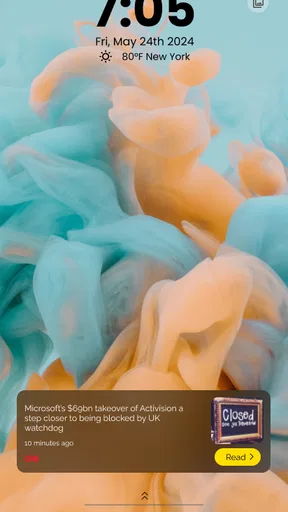
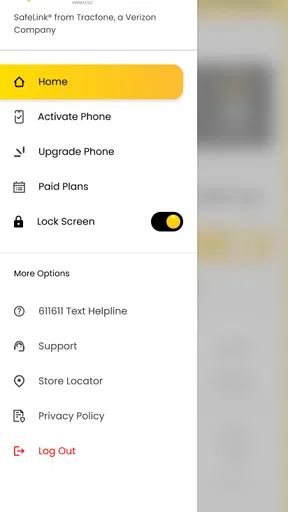
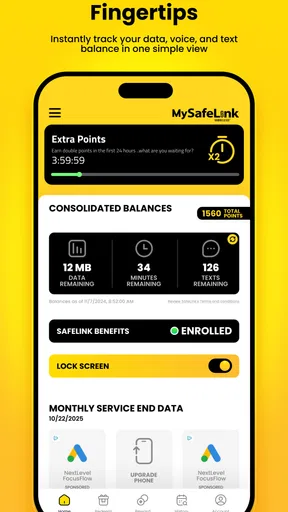
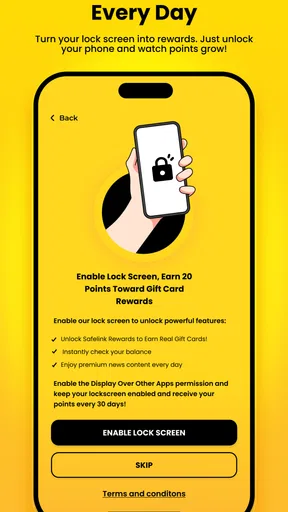
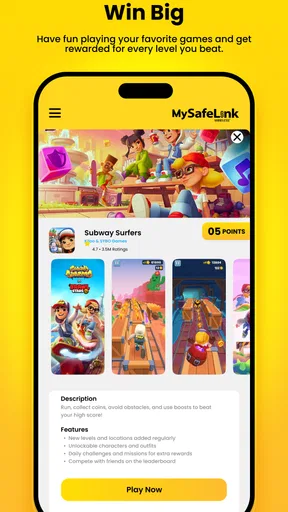
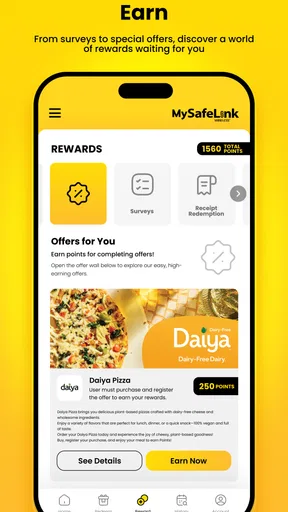
Our Review of My SafeLink
 Analysis by Appyee
When a phone is your main way to stay reachable, the quickest route to an account or service can matter more than having another full-featured communication platform. My SafeLink takes a focused approach: it is a free communication app from Mgames LLC designed to make SafeLink access available from the lock screen and guide eligible users toward applying for Lifeline. I found it most useful as a convenience layer around an important service, rather than as a replacement for messaging, calling, or a general-purpose carrier app.
That distinction is important before installing it. This is not an app I would choose because I want group chats, video calls, contact management, or a broad social inbox. Its value depends on whether SafeLink and Lifeline are relevant to your situation and whether reaching that service quickly from the lock screen would genuinely simplify your routine. For the right person, that narrow purpose is a strength. For everyone else, it can feel like an extra app with very little reason to open it.
How I Decided Whether My SafeLink Was Worth Keeping
I weigh My SafeLink by whether its lock-screen route makes a SafeLink-related task easier on the phone I actually use, not by how many features I expect from a communication app. I also consider whether that shortcut is clear enough to use without slowing me down or exposing account information. That practical test helps me decide when the convenience earns a place in my routine.
The first question is relevance, not the feature list
I would start by asking whether I am already using SafeLink or actively considering an application for Lifeline. The app's store summary points directly toward those tasks, so its usefulness is tied to that context. If I only need ordinary communication, my phone's built-in dialer, messages, contacts, and notification tools are more appropriate. Installing this app without needing SafeLink would not improve those everyday functions.
The lock-screen angle is the main reason to consider it. Lock-screen access can remove a small but repeated obstacle: unlocking the phone, locating the app, and then finding the relevant entry point. That may sound minor, but repeated small delays become irritating when I am checking service information or trying to reach an account-related action while away from home. The convenience is practical rather than flashy.
I also looked at how much commitment the app asks from the user. It is free, carries an Everyone content rating, and runs on Android devices using version 7.0 or later. Those details make it approachable for people using older compatible phones, especially anyone who does not want to replace a handset merely to access a utility connected with their mobile service. The current version is 2.1.6, so I would still keep the app updated through the normal app-store process.
What I would check before relying on it
I would not treat the presence of the app as proof that an application for Lifeline will be accepted. The app can make access more convenient, but eligibility and approval are separate matters. That is an important practical boundary: use it as a route into the process, not as a promise of service. Anyone making a decision about essential phone access should read the information presented during the application process and make sure the details entered are accurate.
I would also test the lock-screen entry when the phone is in the condition I normally use it. A shortcut is only helpful if it is visible, understandable, and available when I need it. If the phone's security settings, manufacturer interface, or notification behavior make the entry confusing, the feature may not save time. In that case, a normal home-screen shortcut or direct account route might be easier for me.
My decision criteria therefore became simple: does the app lead me to the SafeLink-related action I need, does the lock-screen access fit my phone habits, and does it reduce friction without replacing tools I already use? Those questions are more useful than judging it as though it were a complete communication suite.
The everyday situation where it makes sense
Imagine I am using a basic Android phone and need to check or begin a SafeLink-related process while traveling. I may not remember where I placed the app among several screens, and I may not want to search through settings or a browser history. If the lock-screen access is available as intended, I can begin from the first screen I see after waking the phone. That is the kind of small, realistic moment in which this app earns its place.
Another useful situation is a shared household where one person is responsible for keeping track of the phone service but is not comfortable navigating a crowded smartphone interface. A focused entry point can be easier to explain than a chain of browser tabs and bookmarks. I would still show the person how to recognize the correct SafeLink-related screen and how to return to the phone's regular lock screen, rather than assuming that every shortcut is self-explanatory.
Where the focused design wins
The strongest part of My SafeLink is its narrow purpose. Many service-related apps try to combine account management, promotions, support, usage details, billing, and communication into one busy dashboard. This app is easier to understand if I think of it as a direct access point. That can be valuable for someone who wants one specific route instead of a large collection of features.
Its free price also removes a financial barrier to trying it. I can install it, see whether the access method fits my routine, and remove it if it does not. I would not confuse “free” with “automatically useful,” but there is no purchase decision standing between a relevant user and the experiment. The Everyone rating may also make it feel suitable for a broad household audience, although adults should still help younger or less experienced users understand account and application information.
The app has also reached a substantial audience, with over a million installs and an average rating of 4.1 from around eleven thousand ratings. I see that as evidence that the basic idea has found a real user base, not as a guarantee that every phone will behave identically. The rating is encouraging, while the gap between a good average and a perfect score reminds me that convenience features can depend heavily on device setup and personal expectations.
Three practical habits that improve the experience
First, I would place the app's entry point where I can recognize it quickly, but I would not remove the ordinary phone, messages, or emergency-access tools from their familiar locations. The point is to add a route to SafeLink, not to make basic communication harder to reach. This is especially important on a phone used by someone who depends on predictable controls.
Second, I would use the app for the task it is meant to simplify and keep a separate record of any important application information in a secure place. A lock-screen shortcut helps me start an action; it is not a substitute for remembering the details I may need to complete that action. I would avoid writing sensitive information in an exposed note or leaving an account screen open where another person could read it.
Third, I would compare the lock-screen route with the regular browser or account route once, when I am not in a hurry. If the shortcut saves several steps and presents the information clearly, I would keep it. If the browser route is easier to understand, I would use that instead and treat the installed app as unnecessary. This test prevents me from keeping an app merely because its description sounds convenient.
Where the usual alternatives may fit better
The built-in phone tools are better for ordinary communication. If my goal is to call a contact, send a text, or see recent conversations, the dialer and messaging app are already designed for those jobs. My SafeLink should not be judged against them as though it were competing for the same role. It is a service-access utility, and its advantage appears only around the SafeLink and Lifeline pathway.
A mobile browser may be the better alternative when I need flexibility. A browser can handle unrelated account pages and let me move between services without installing a dedicated app. It may also be preferable on a device with limited storage or on a phone used by several people. The trade-off is that a browser route can be less immediate, especially if I must search for the right page or sign in repeatedly.
A broader carrier or account-management app may suit someone who wants several service tasks in one place. If I need a general dashboard rather than a focused SafeLink entry point, that category is likely a better match. The downside is complexity: more sections can mean more taps and more opportunities to choose the wrong menu. My SafeLink wins when the specific route matters more than breadth.
I would also skip it if I am not applying for Lifeline, do not use SafeLink, or already have a reliable access method that I understand. In those cases, the app's central benefit does not apply. Installing it simply because it is free could create clutter without adding a useful daily function.
What switching really costs
Moving from a browser bookmark to My SafeLink is not a major technical project, but there is a small habit cost. I have to learn where the lock-screen access appears, remember which route is for SafeLink-related actions, and decide whether I prefer that shortcut to the method I already know. For someone who rarely needs the service, learning a new entry point may take longer than opening a familiar browser bookmark.
Moving in the opposite direction is equally straightforward in principle: I can keep using a browser or the phone's existing tools and remove the dedicated app if it no longer helps. Before doing that, I would make sure I know how to reach any service page I still need. The real cost is not the installation itself; it is losing a convenient path without preparing another one.
There is also a privacy and security trade-off in any lock-screen access feature. Convenience means less navigation before reaching the relevant service, but I should pay attention to what can be seen before the phone is fully unlocked and whether the shortcut behaves differently on my device. I would not leave account details displayed in public, and I would keep the phone protected with the lock method I normally trust.
For older Android hardware, compatibility is a practical advantage because the minimum operating-system requirement is Android 7.0. Still, an older phone may have a manufacturer-specific lock screen or slower performance. I would judge the app by how it behaves on the actual handset, not only by its operating-system compatibility. If the phone is already struggling with basic tasks, a browser bookmark may be the lighter-feeling choice.
My recommendation for the right user
I recommend My SafeLink to someone who uses or is pursuing SafeLink service and wants a direct, lock-screen-oriented way to reach that process. The app is free, focused, and easy to justify when it removes a repeated step from an important routine. I especially see value for users with basic Android phones, people who dislike searching through menus, and households that need a clearly identified route to Lifeline-related information.
I would not recommend it as a general communication app. It does not replace the phone's dialer or messaging tools, and it is not the choice I would make for broader account management when a more complete service app or a browser already handles everything I need. Its narrow scope is the reason to install it and also the reason many people can safely skip it.
In my view, the best approach is to try it with one specific task in mind: reach SafeLink access or begin the Lifeline application process more easily from the lock screen. Check whether that route is clear on your phone, keep your normal communication tools easy to reach, and remove the app if it does not save effort. With that realistic expectation, My SafeLink is a useful convenience tool rather than an overpromised all-in-one solution.
For a focused SafeLink user, that is enough. I would keep it when the shortcut genuinely improves access, and I would choose the browser or built-in phone tools when my needs extend beyond that single service path.
Privacy and Permissions
See what permissions an app requests and how it handles your data.
- Location
- precise location (GPS and network-based)
- Phone
- read phone status and identity
- Photos/Media/Files
- read the contents of your USB storage, modify or delete the contents of your USB storage
- Storage
- read the contents of your USB storage, modify or delete the contents of your USB storage
- Camera
- take pictures and videos
- Wi-Fi connection information
- view Wi-Fi connections
- Device ID & call information
- read phone status and identity
- Other
- view network connections, connect and disconnect from Wi-Fi, disable your screen lock, full network access, run at startup, draw over other apps, control vibration, prevent device from sleeping, Google Play license check
Verdict
Strengths of My SafeLink
- Quick access to saved SafeLink resources and account information.
- Simple interface that is easy to navigate for first-time users.
- Useful for checking benefits and services while away from a computer.
- Reduces the need to remember multiple web addresses or contact details.
- Convenient mobile access for users who rely on SafeLink Wireless services.
Limitations of My SafeLink
- Some features may require an active SafeLink account or eligible service.
- Performance can depend on network quality and may feel slow on weak connections.
- Users may need to update the app regularly for compatibility and security.
- Limited usefulness for people who do not use SafeLink Wireless services.
- Support options may direct users to online help instead of immediate assistance.
Similar Picks in This Category
View All
Google Messages
Google LLC4.6

Gmail
Google LLC4.1

Google Meet
Google LLC4.4

Google Chrome
Google LLC4.1

WhatsApp Messenger
WhatsApp LLC4.6

Carrier Services
Google LLC4.2
Frequently Asked Questions
What is My SafeLink and what can I use it for?
My SafeLink is the official mobile app for SafeLink Wireless customers. After signing in, users can generally review account information, monitor available service benefits, check data usage, manage their plan, make payments, and access support. The exact tools shown may depend on your SafeLink program, location, account status, and the current version of the application.
Do I need a SafeLink Wireless account to use My SafeLink?
Yes, most account-management features require an active SafeLink Wireless account and valid login details. During setup, the app may ask for information such as your SafeLink phone number, email address, or other account verification details. If you are applying for service rather than managing an existing account, some enrollment options may redirect you to SafeLink’s website or require additional eligibility information.
Can My SafeLink show my remaining data, minutes, or service benefits?
The app is designed to help eligible SafeLink customers keep track of their wireless service, including available data, minutes, texts, or other plan benefits. The information may not update instantly, particularly after using mobile data, adding a refill, or changing plans. For the most accurate balance, refresh the account page and compare the displayed details with SafeLink’s official account notifications.
Can I pay my bill or change my SafeLink plan through the app?
Depending on your account type and the features currently supported, My SafeLink may allow you to make payments, manage automatic payment settings, review plan details, or select available service options. Not every customer will see the same controls. Some changes, upgrades, or eligibility-related requests may require contacting SafeLink support or completing the process through the official website.
Is My SafeLink safe to download and what permissions does it require?
Download My SafeLink only from the official Google Play Store or Apple App Store, and verify that the listed developer is SafeLink Wireless or its authorized provider. The app may request permissions related to notifications, device information, or network access so it can operate and display account alerts. Review permissions before accepting, keep the app updated, and avoid entering account credentials into unofficial copies.
